
How to back up and export your Chrome history (JSON or CSV)
Chrome has no "export history" button. Here's how to back up your browsing history, export it to JSON or CSV, open it in Excel or Google Sheets, and move it to another computer.
Your browsing history is a record of research, purchases, recipes and half-finished reading. Yet Chrome gives you no simple way to save a copy: there is no Export button on the History page, and Chrome keeps only about 90 days anyway.
Here are the ways to back up and export it, from the most technical to the easiest.
Option 1: Google Takeout
If you're signed in to Chrome with sync turned on, Google can export your Chrome data:
- Open takeout.google.com.
- Click Deselect all, then tick Chrome.
- Create the export and download the archive when it's ready.
Inside you'll find a BrowserHistory.json file. It's complete for what Google has, but it's a one-off snapshot, it depends on sync, and the raw JSON isn't pleasant to read.
Option 2: Copy Chrome's History file
Chrome keeps history in a SQLite database named History in your profile folder (find the exact path at chrome://version → Profile Path). Quit Chrome and copy the file somewhere safe. To read it you'll need a SQLite viewer, and timestamps are stored in Chrome's own format — fine for developers, awkward for everyone else.
Option 3: Browser History+ — export, restore and import in a few clicks
Browser History+ keeps its own copy of your history and makes backups simple. Open the extension and go to Settings.
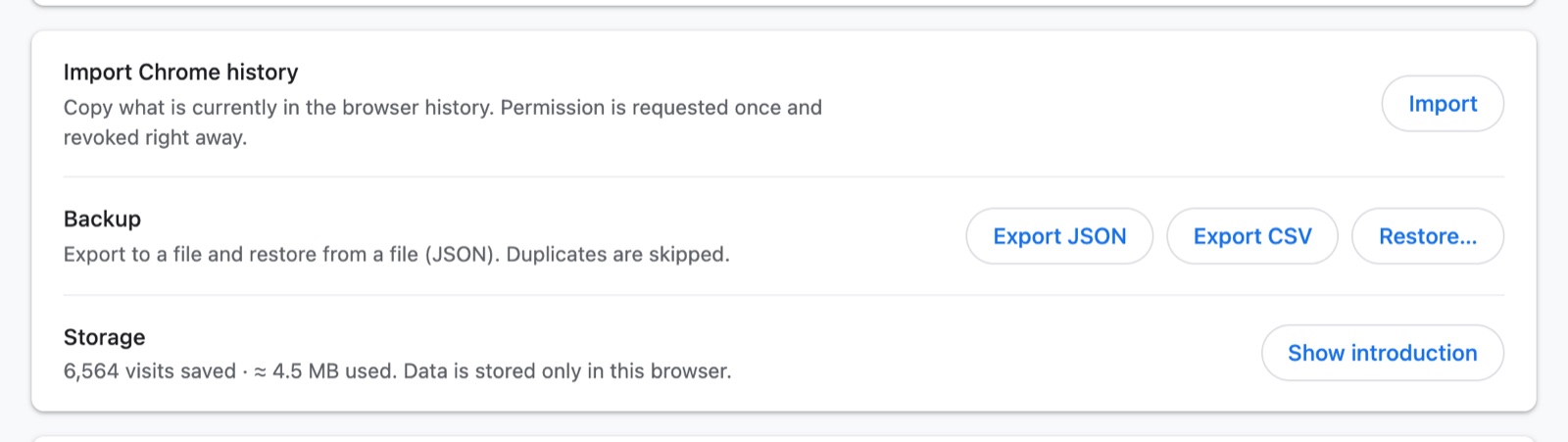
Export to JSON (full backup)
Click Export JSON. You get a file like history-plus-2026-11-16.json with every saved visit: address, title, time, site icon address and the Incognito marker. This is the format to keep as a backup or to move history to another computer.
Export to CSV (for Excel and Google Sheets)
Click Export CSV. The file has four columns — time, title, url, domain — and is saved in UTF-8 so titles in any language open correctly in Excel, Numbers or Google Sheets. Use it to filter by site, make a pivot table of visits per domain, or build a timesheet of what you worked on.
Restore from a backup
Click Restore… and choose a JSON backup. Visits are added to the existing history; duplicates are skipped, so restoring the same file twice is safe.
Import what Chrome already has
Click Import under Import Chrome history (also offered during setup). Chrome asks for the "history" permission; the extension copies your current Chrome history once — usually the last 90 days — and immediately gives the permission back. Duplicates are skipped here too.
Moving history to another computer
- On the old computer: Settings → Export JSON.
- Copy the file (USB stick, cloud drive, email to yourself).
- On the new computer: install Browser History+, then Settings → Restore… and pick the file.
Browser History+ has no cloud sync by design — your history never goes to a server — so a JSON file is how you move it. The same works between Chrome profiles or between Chrome and Edge.
How often should you back up?
Your history copy lives inside the browser profile. If you reinstall the operating system, delete the profile or uninstall the extension, it's gone. A monthly JSON export to a folder you already back up is a good habit.
Frequently asked questions
Can I export my Chrome history to Excel?
Chrome itself can't. With Browser History+, open Settings and click Export CSV — the file opens directly in Excel or Google Sheets with time, title, URL and domain columns.
How do I move my browsing history to a new computer?
Export a JSON backup in Browser History+ on the old computer and restore it with Settings → Restore on the new one. Duplicates are skipped automatically.
Does exporting send my history anywhere?
No. The export file is created in your browser and saved to your Downloads folder. Nothing is uploaded.
Will restoring a backup create duplicate entries?
No. Visits that already exist are skipped, so you can restore the same backup more than once.