
Getting started with Browser History+: a 5-minute guide
Install Browser History+, pin it, import your Chrome history, and learn the searches, filters, analytics, password and backups that make your browsing history impossible to lose.
Browser History+ is built to be set up once and then forgotten — until the day you need a page back. This guide walks through the first five minutes and the features worth knowing.
1. Install and pin the icon
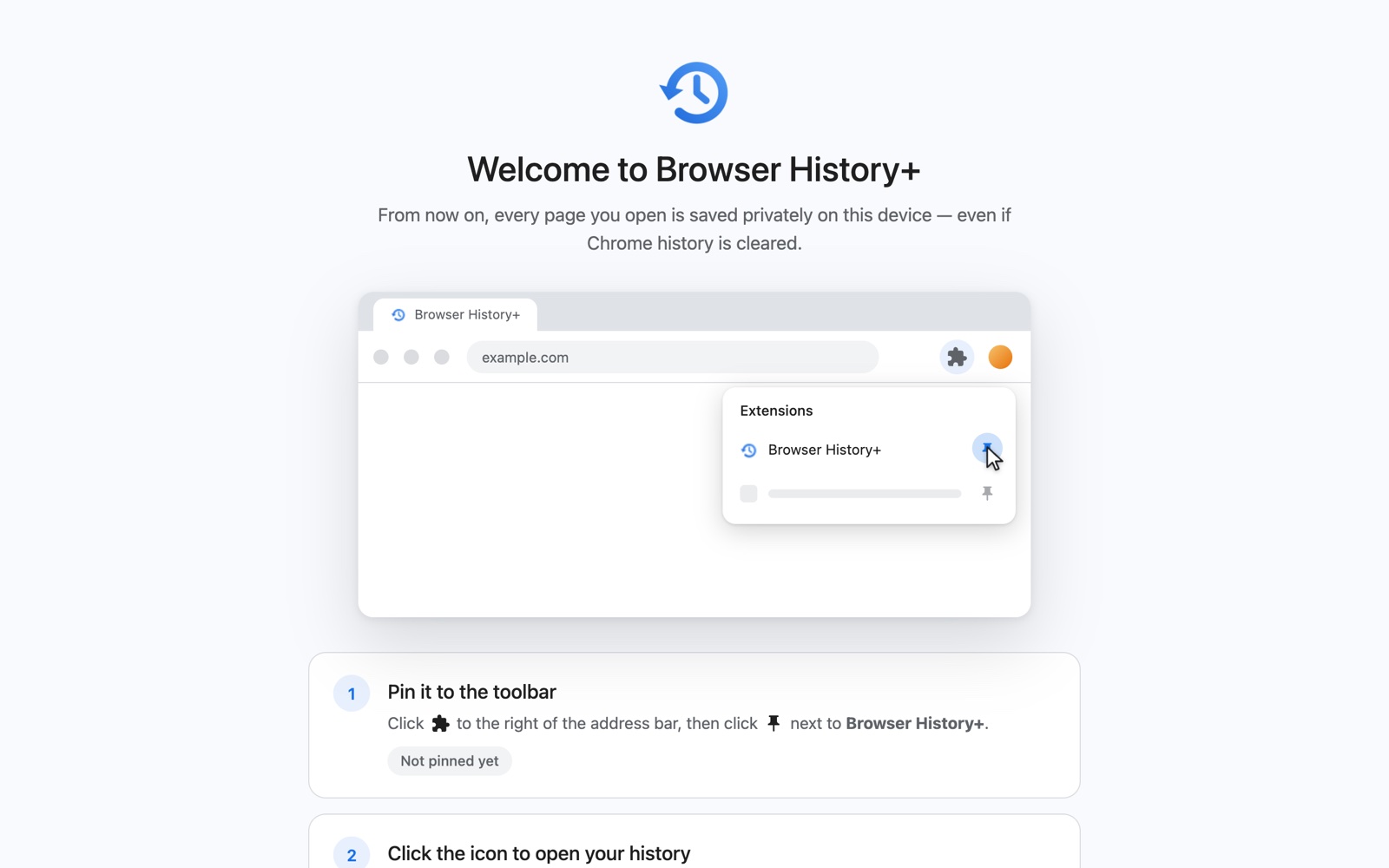
Add Browser History+ from the Chrome Web Store. A welcome page opens with a short animation that shows how to pin the extension: click the puzzle-piece icon to the right of the address bar, then the pin next to Browser History+. The welcome page notices when it's pinned.
Click the toolbar icon to open the app. The first time, a short setup lets you choose the language, decide about Incognito and set an optional password.
2. Import what Chrome already has
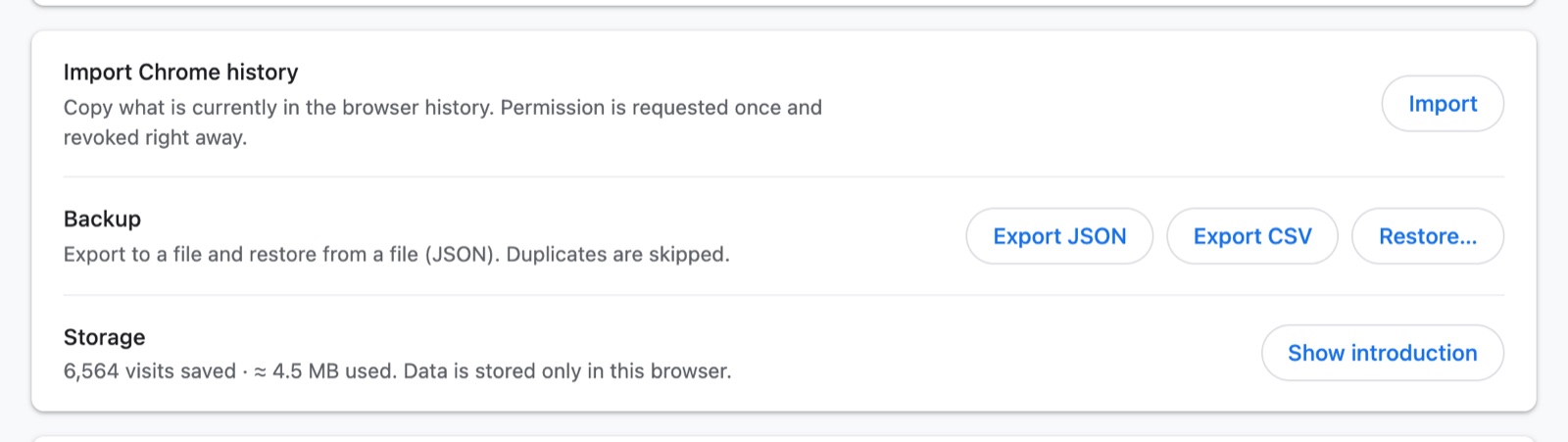
Chrome still holds your last ~90 days of history. In the last setup step (or later in Settings → Import Chrome history) click Import. Chrome asks for the "history" permission; the extension copies the history once and gives the permission back right away. Duplicates are skipped.
From now on, new visits are saved automatically in the background.
3. Find anything
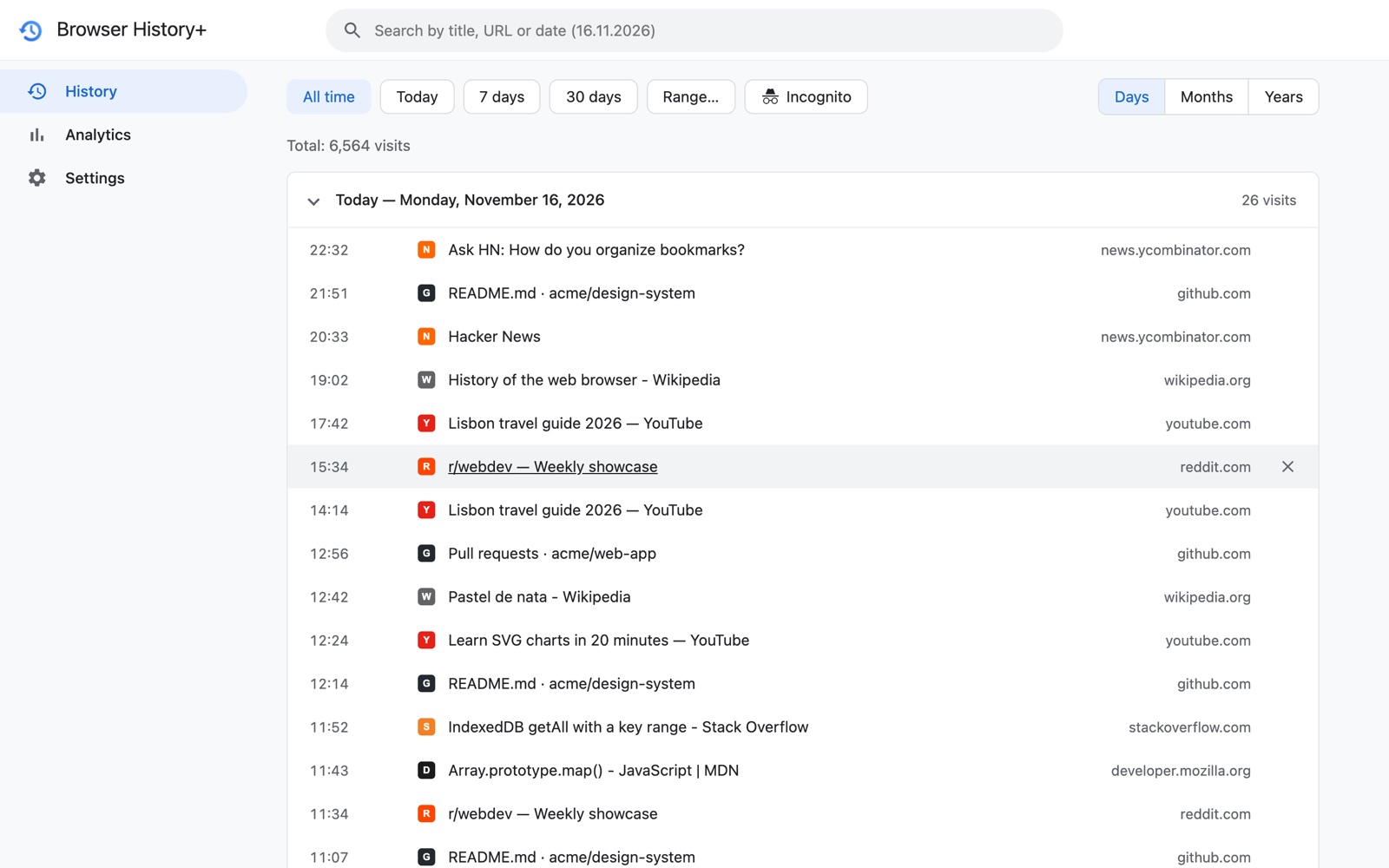
The History screen lists visits by day, newest first. Type in the search box to filter by title or address — matches are highlighted.
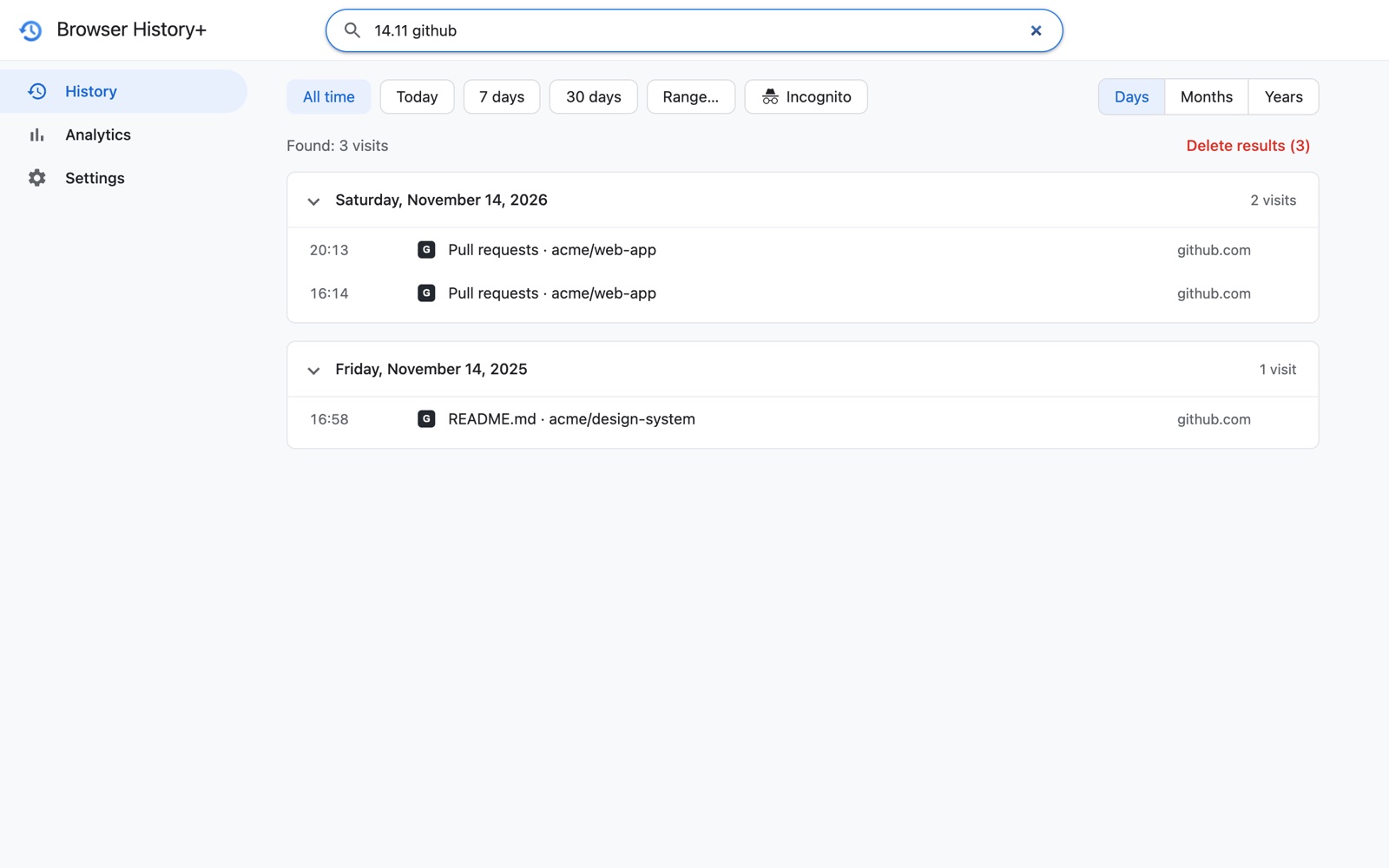
Search understands dates. Type 16.11.2026, 16.11 or combine a date with a word, like 16.11 github:
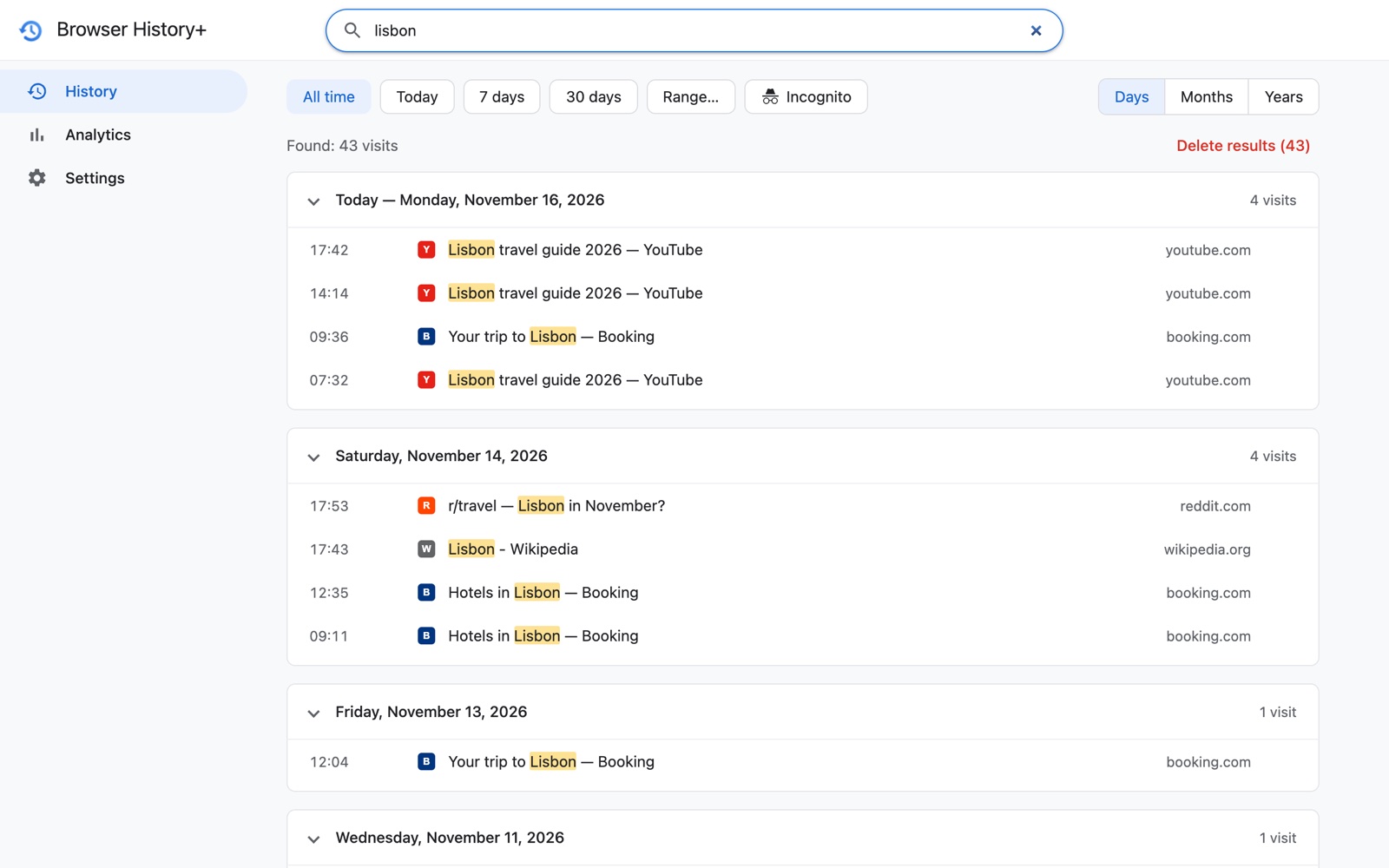
Other ways to narrow it down:
- Today, 7 days, 30 days or Range… with exact start and end dates;
- group by Days, Months or Years for long histories;
- click a domain in any row to see every visit to that site.
4. Get pages back after Chrome history is cleared
This is the reason Browser History+ exists. Clear Chrome history as often as you like — the extension's copy isn't affected. Open it, search, click the page.
More: how to recover deleted Chrome history.
5. See your browsing in charts
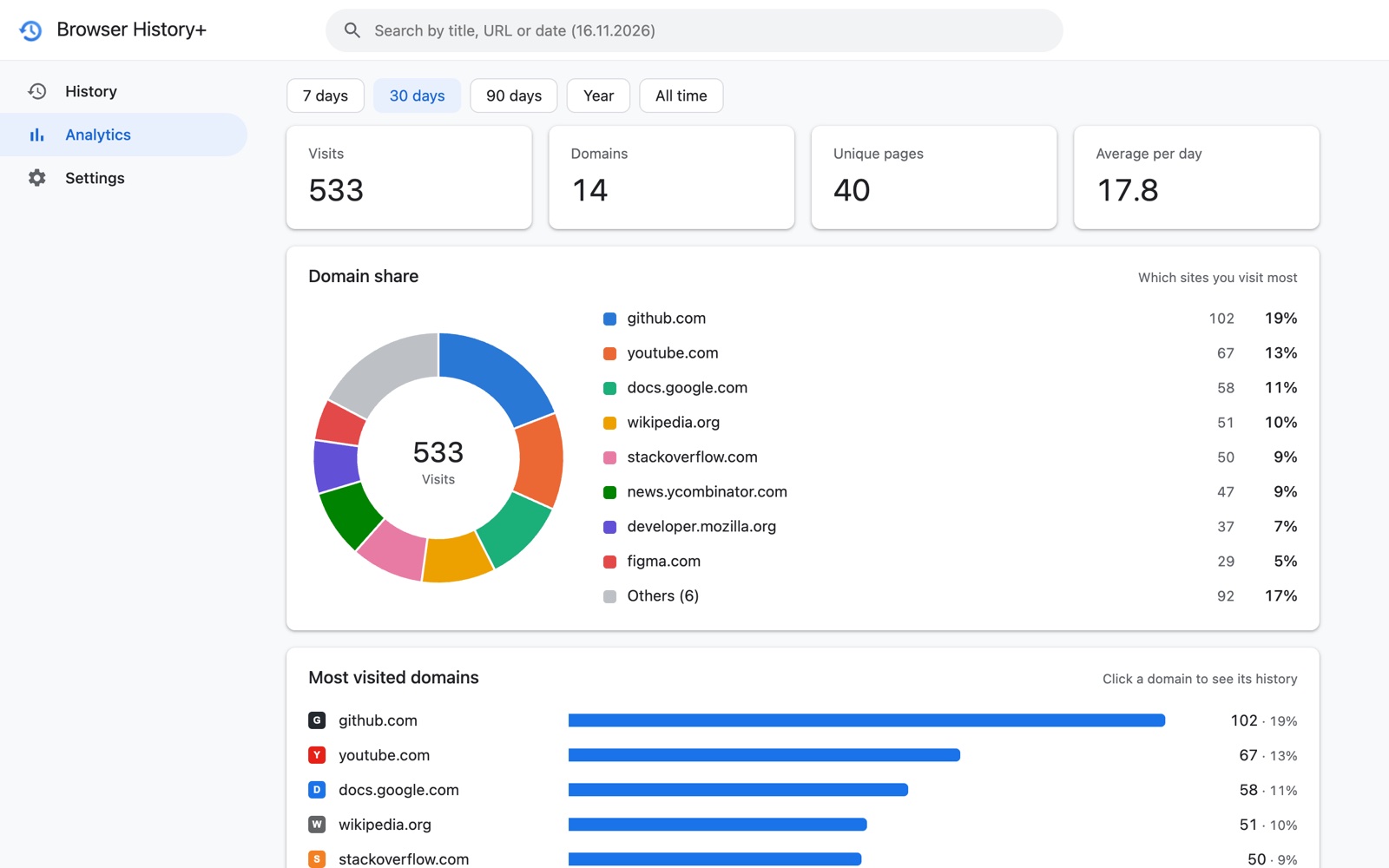
The Analytics tab summarizes 7 days to all time: visits, domains, unique pages, a domain-share donut, your top 15 sites, activity over time and by hour.
More: browsing history analytics.
6. Lock it with a password
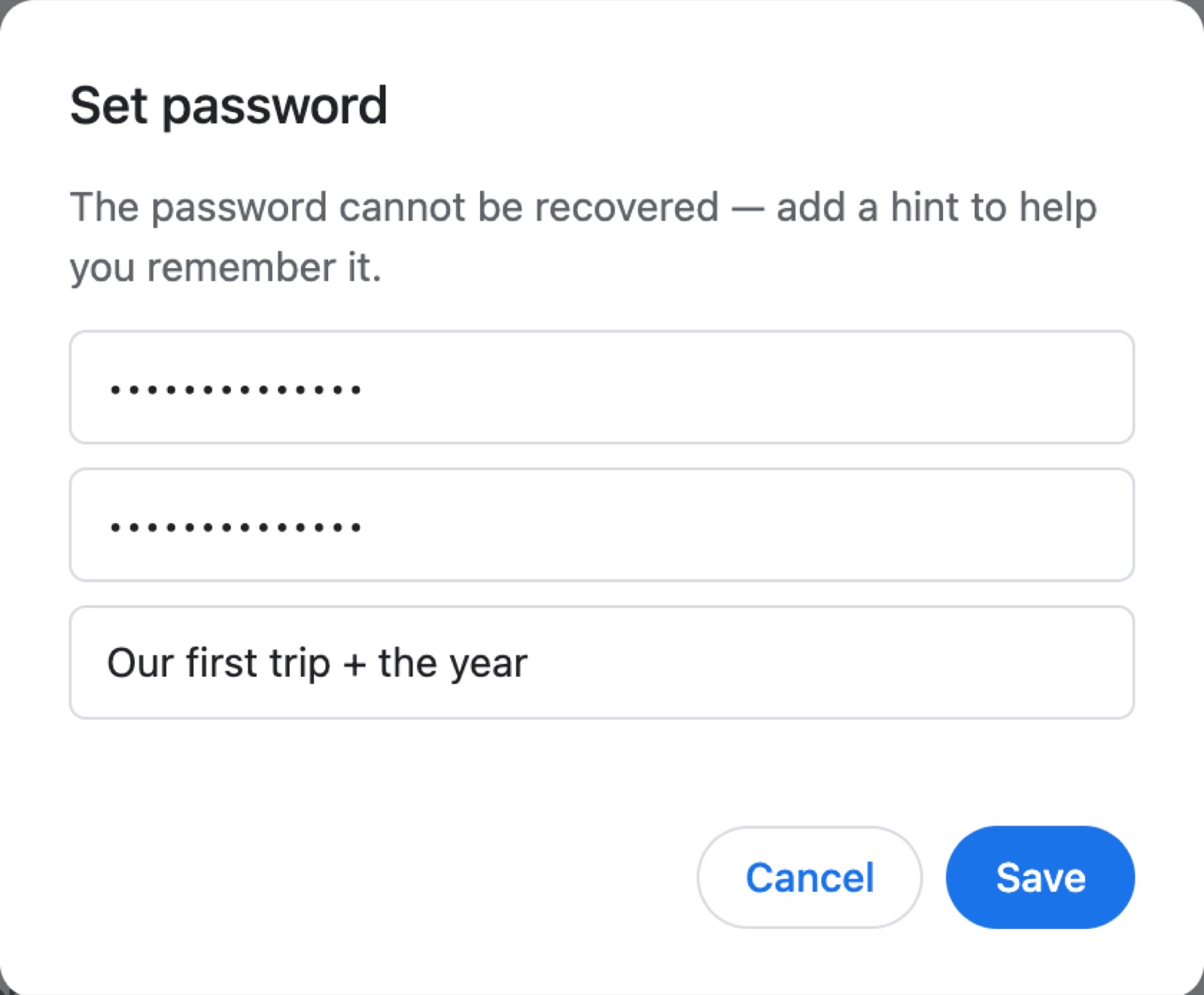
If other people use your computer, set a password with a hint in Settings → Password, and choose when it locks again.
More: how to password-protect your browsing history.
7. Back up, export and move
Settings has Export JSON (full backup), Export CSV (for spreadsheets) and Restore…. Use them to keep a backup or move your history to another computer.
More: how to back up and export your Chrome history.
8. Make it yours
Pick Device, Light or Dark theme, and one of six languages.

Frequently asked questions
Do I need an account?
No. There is no sign-up and no server. Everything is stored in your browser.
Will it record pages I visited before installing it?
Only what you import from Chrome during setup — usually the last 90 days. After that, every visit is saved automatically.
How do I open Browser History+?
Click its icon in the Chrome toolbar. If you don't see it, click the puzzle-piece icon and pin Browser History+.