
How to password-protect your browsing history in Chrome
Chrome has no password for its History page. Here's how to keep your browsing history private on a shared computer — with Chrome profiles, OS accounts and a password-locked history copy.
Anyone who sits down at your computer can press Ctrl+H (or Cmd+Y on a Mac) and see where you've been. Chrome has no setting to lock the History page with a password. If you share a computer with family, roommates or colleagues, here are your options.
Option 1: Separate accounts or Chrome profiles
The most robust protection is not sharing the same browser profile at all:
- Operating system accounts (Windows, macOS, Linux) with their own passwords keep each person's browser data completely separate.
- Chrome profiles (click your profile picture → Add) separate history, bookmarks and passwords per person. Profiles are convenient, but they are not locked — anyone can switch to yours.
- Guest mode is ideal for visitors: nothing they do is saved.
Option 2: Incognito for sensitive browsing
Pages opened in Incognito never enter Chrome's history. The catch: you can't find them later either.
Option 3: A password-locked history with Browser History+
Browser History+ keeps its own copy of your history — and that copy can be locked with a password. It's the best of both: you keep a full record you can search later, and other people using the same profile can't open it.
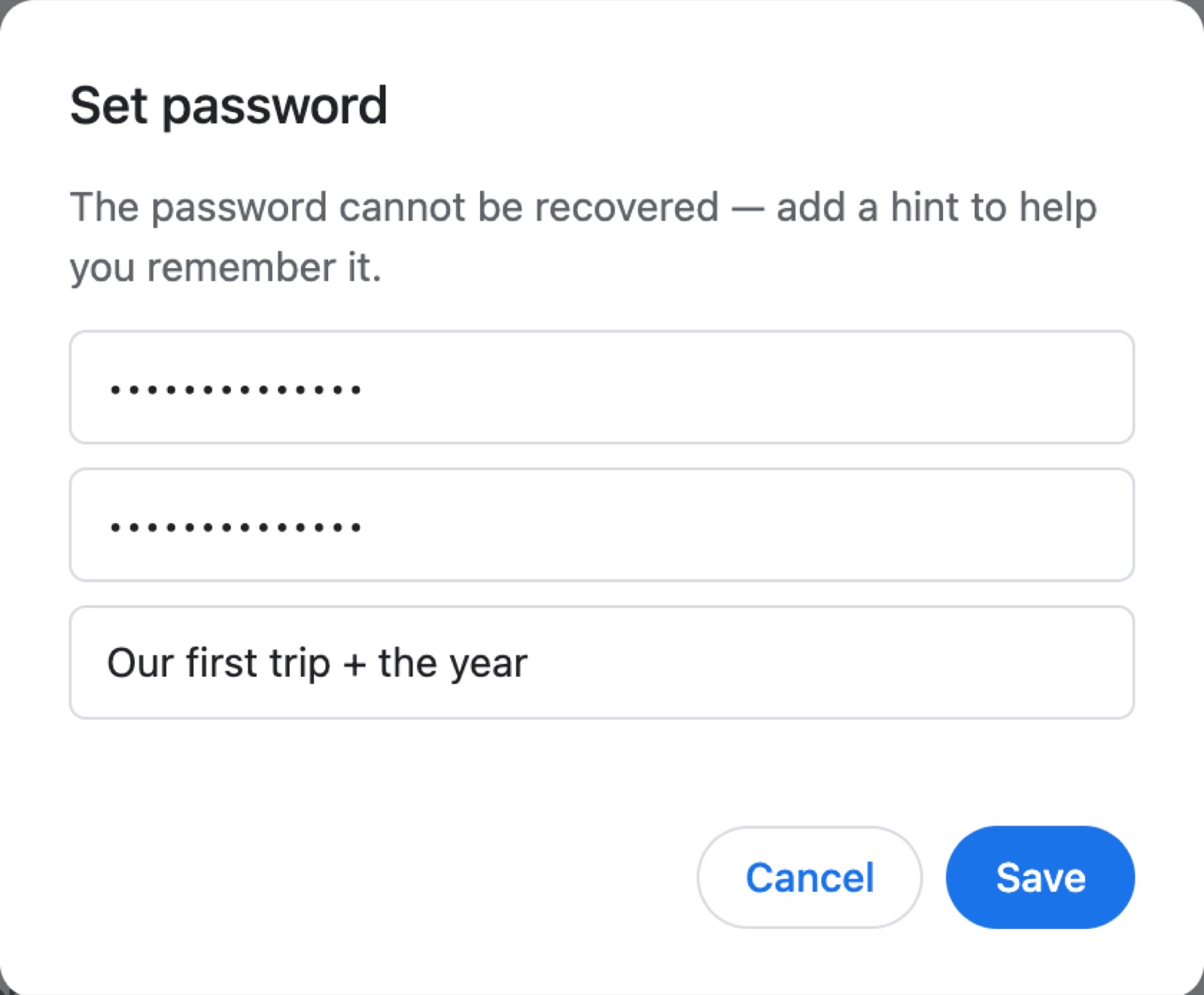
Set a password
Set it during the first-run setup or later in Settings → Password → Set:
- Enter a password (at least 4 characters) and confirm it.
- Optionally add a hint — something only you will understand. The hint can't contain the password itself.
Choose when it locks
Under Lock, pick when the app asks for the password again:
- Every time it opens,
- After 5 minutes, 15 minutes or an hour of inactivity.
You can also lock it instantly with the lock button in the top bar.

What the lock covers
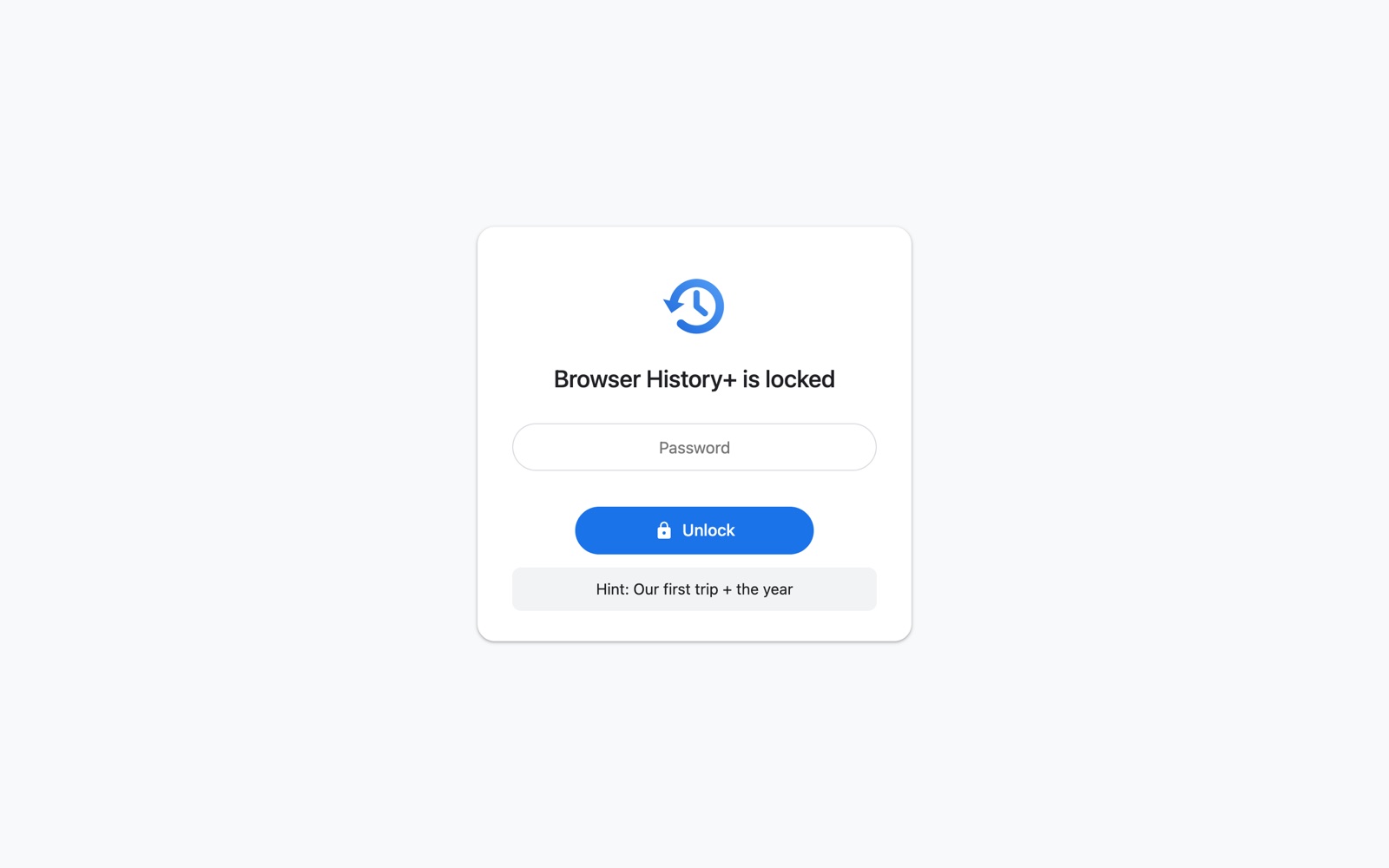
- The whole app — history, search, analytics and settings — is hidden behind a lock screen until the password is entered.
- Deleting everything asks for the password too.
- Changing or removing the password requires the current one.
How the password is stored
The password itself is never saved. Browser History+ stores only a salted PBKDF2-SHA256 hash (210,000 iterations), and the check happens locally. There is no server and no account.
That has one important consequence: a forgotten password can't be recovered or reset. Choose a hint that will really remind you.
What a password can and can't do
Be clear about the limits so you can rely on it correctly:
- It protects the Browser History+ copy. Chrome's own History page (Ctrl+H) still works as usual — clear it whenever you like; your locked copy stays intact.
- Someone with full access to your computer account could still remove the extension, which deletes its data. For protection against that, use a separate OS account.
Frequently asked questions
Can I put a password on Chrome history?
Chrome has no built-in password for its History page. Browser History+ keeps its own copy of your history that you can lock with a password, a hint and auto-lock.
What happens if I forget the Browser History+ password?
It can't be recovered or reset, because only a salted hash is stored on your device and there is no server. Pick a hint that only you understand.
Does the password also lock Chrome's History page?
No. It locks the Browser History+ app. Chrome's own history stays accessible, so for a shared computer combine the password with clearing Chrome history or separate profiles.