
Fill in timesheets from your browser history: reconstruct your workday
Forgot to track time? Your browser history knows which documents, tickets and tools you used and when. How freelancers and teams can rebuild a day or a week for timesheets, invoices and stand-ups.
It's Friday afternoon, the timesheet is due, and Tuesday is a blur. Most of your work happened in the browser — tickets, documents, pull requests, dashboards, client sites. Your history already recorded the day; you just need a good way to read it.
Why browser history works as a work log
- It's automatic. No timers to start or forget.
- It's specific. Page titles name the ticket, the document, the client project.
- It's timestamped. Every visit has a time, so you can see when work started and switched.
Chrome's History page shows this, but only as one long list, without date filters, and only for about 90 days. Browser History+ turns it into something you can use.
Step 1: Open the day
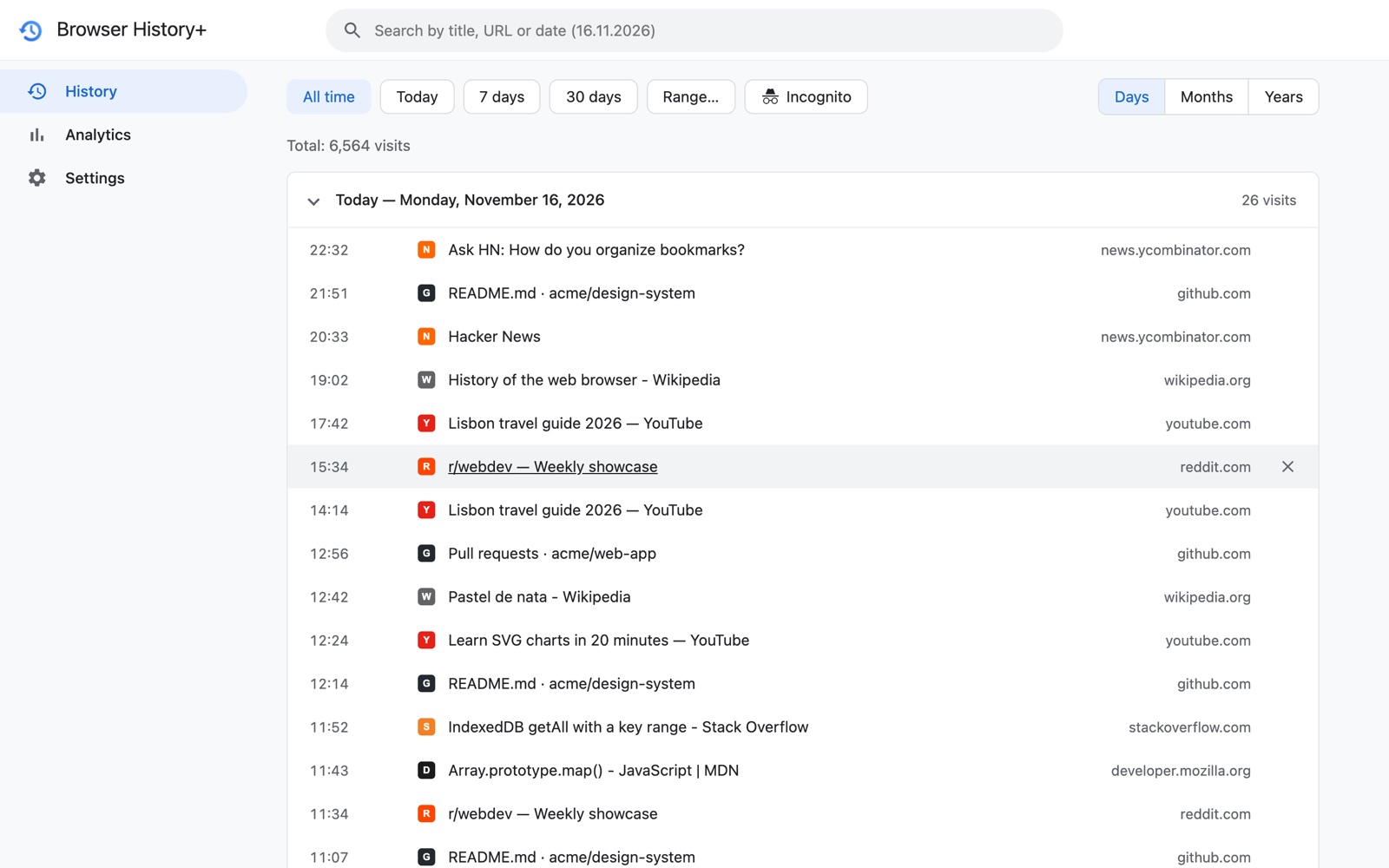
Type the date in the search box — 12.11 — and you get exactly that day, newest first, with times.
Step 2: Filter by project or tool
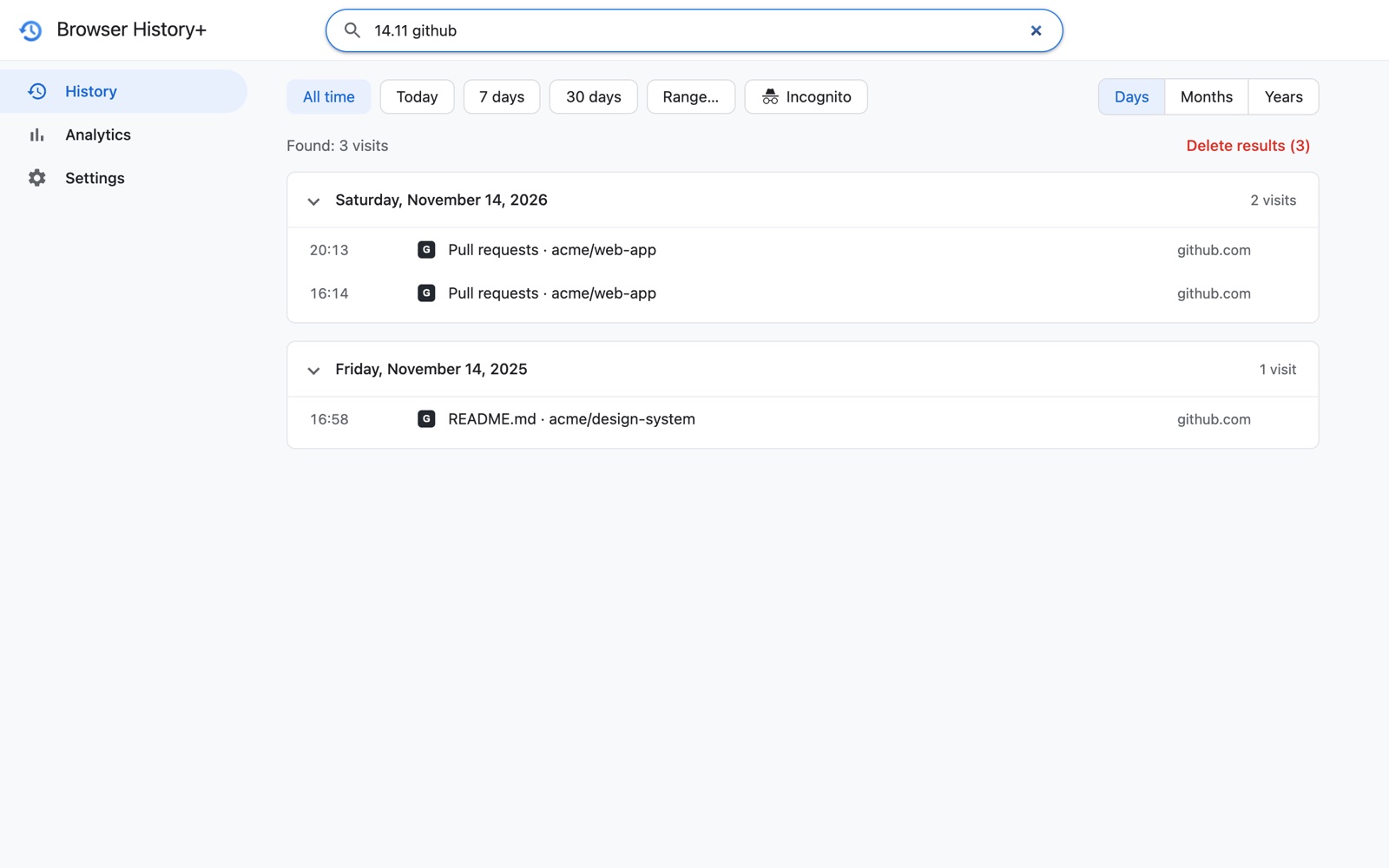
Add a word: 12.11 acme shows only pages with that client or project in the title or address. Or click a domain, like docs.google.com, to see every document you opened.
Step 3: See when you were active
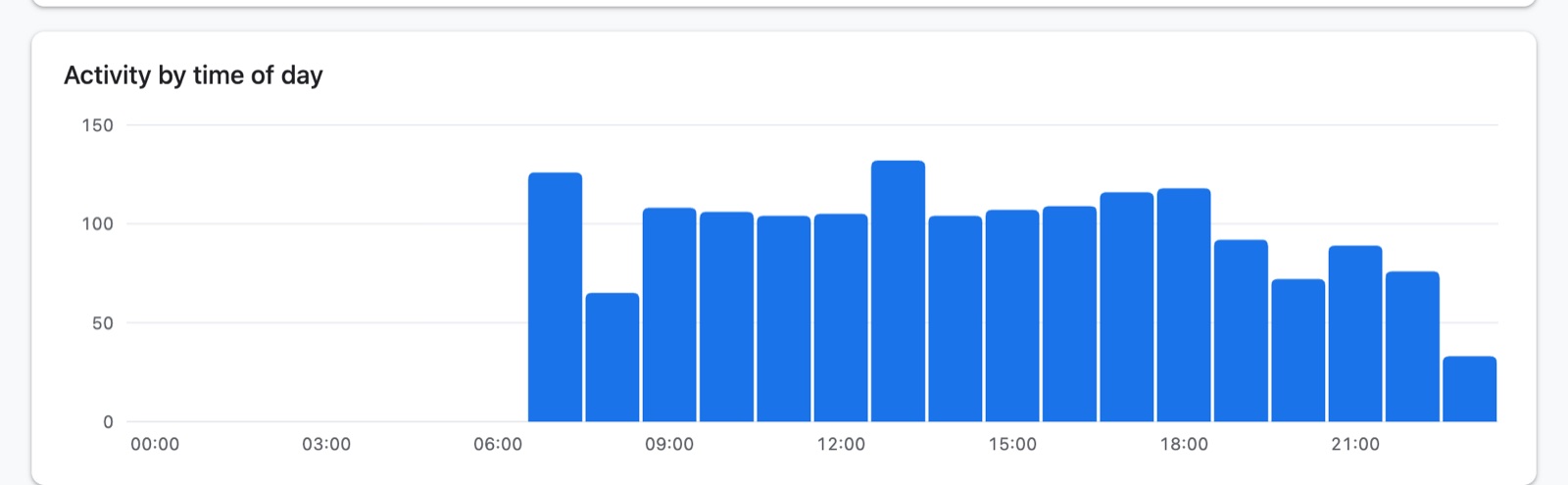
The Analytics tab shows activity by hour. For a single day or a week, it's a quick sanity check of when you started, when you took breaks and when you finished.
Step 4: Export to a spreadsheet
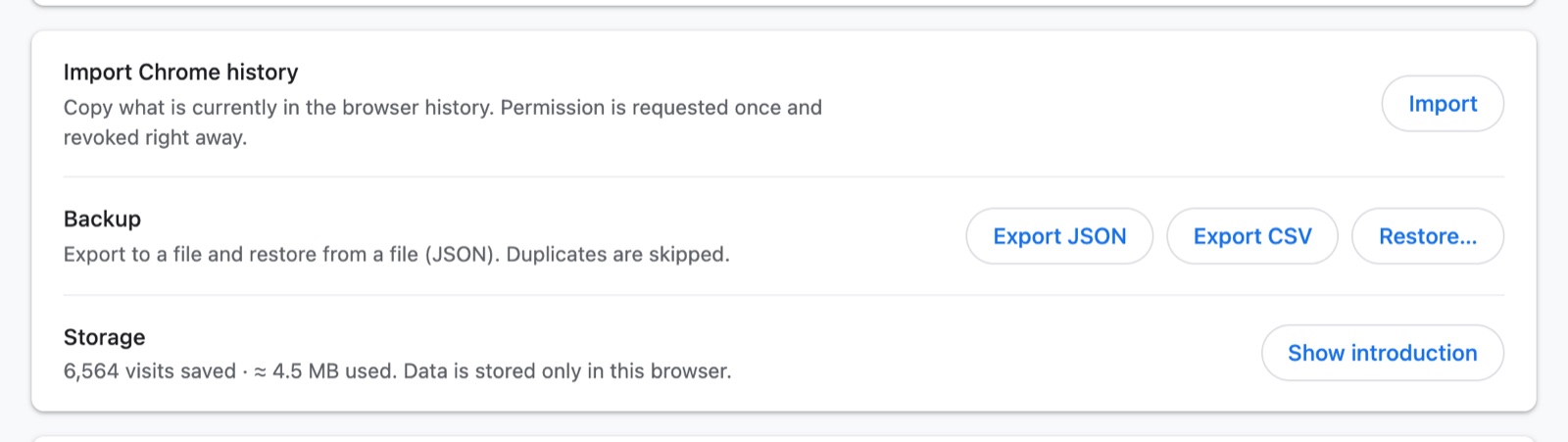
For invoices and detailed timesheets, use Settings → Export CSV. You get time, title, url and domain columns, ready for Excel or Google Sheets:
- Filter rows by the date and the client's domain or project name.
- Use the first and last timestamps per block as start and end times.
- Copy ticket and document titles into the description column.
Step 5: Write the weekly report
For stand-ups and weekly summaries, set the range to the last 7 days and scan the day groups. Analytics → Most visited domains shows where your time went across tools.
A note on privacy at work
Your history is personal. Browser History+ keeps it only on your computer, with no servers or accounts, and you can lock it with a password. Before using it on a work computer, check your company's policy on browser extensions.
Frequently asked questions
Can I use my browser history to fill in a timesheet?
Yes. Open the day in your history to see which tickets, documents and sites you used and when. Browser History+ lets you jump to a date, filter by project and export to CSV for a spreadsheet.
How do I see what I worked on last Tuesday?
Type the date, for example 12.11, into the Browser History+ search box to see that day's pages with times. In Chrome's own History page, scroll down to that day.
Does it track how long I spent on each page?
No. It records visits with their time. Gaps between visits give a good picture of work blocks, but it isn't a stopwatch.